
Page Layout
Since v1.4.0 every worksheet carries a paging model — paper size, orientation, margins, and scale — plus an on-screen page-break preview with draggable, insertable breaks. It drives both PDF Export (usePageBreaks: true) and round-trips through xlsx so a sheet paginates the same way in ReoGrid and Excel.
Note: Page Layout is available in the Pro edition.
Print settings
Read and update the paging model on the worksheet:
import { createReogrid } from '@reogrid/pro'

const grid = createReogrid({ workspace: '#app' })
const ws = grid.worksheet

// Merge a partial update — untouched fields keep their value
ws.setPrintSettings({
  paperSize: 'A4',
  orientation: 'landscape',
  margins: { top: 15, right: 12, bottom: 15, left: 12 }, // mm
  scale: 1,                                              // 1 = 100%
})

const settings = ws.getPrintSettings()
console.log(settings.paperSize, settings.orientation)
PrintSettings
| Field | Type | Default | Description |
|---|---|---|---|
paperSize | 'A3'|'A4'|'A5'|'B4'|'B5'|'Letter'|'Legal'|'Tabloid'|'Executive' or { widthMm, heightMm } | 'A4' | Paper size name or custom size in mm. |
orientation | 'portrait' | 'landscape' | 'portrait' | Page orientation. |
margins | { top, right, bottom, left } | Excel defaults (17.78 mm sides, 19.05 mm top/bottom) | Margins in mm. |
scale | number | 1 | Content scale factor; clamped to [0.1, 4]. Ignored while fitToPages is set. |
fitToPages | { width?, height? } | — | v1.6.0 — fit the content into N pages wide / tall; the scale is derived for you. |
pageOrder | 'downThenOver' | 'overThenDown' | 'downThenOver' | Order pages are walked for getPrintPageRanges. |
Fit to pages
Since v1.6.0 you can say how many pages the sheet should come out as, rather than picking a shrink percentage by hand. This is Excel’s 「N ページに収める」.
// All columns on one page, however many pages tall it takes
ws.setPrintSettings({ fitToPages: { width: 1 } })

// One page wide and at most two pages tall
ws.setPrintSettings({ fitToPages: { width: 1, height: 2 } })
Omit an axis (or pass 0) to leave it unconstrained. Like Excel, fitting only ever shrinks — content that already fits prints at 100%.
While fit mode is on, scale is ignored, but it is remembered and comes back when you turn fitting off:
ws.setPrintSettings({ fitToPages: undefined }) // your configured scale returnsTo read the scale that was actually worked out:
ws.getEffectivePrintScale() // e.g. 0.72The page-break preview, PDF export and browser print all agree on that number, and the setting round-trips through xlsx (<pageSetUpPr fitToPage> plus <pageSetup fitToWidth/fitToHeight>) and ReoGrid JSON.
Page header & footer
Since v1.5.0 PrintSettings.headerFooter prints text in the paper margins — page numbers, a date, the sheet or file name — using Excel’s own format codes, and round-trips through xlsx.
ws.setPrintSettings({
  headerFooter: {
    header: { center: '&"Meiryo"売上明細' },
    footer: { right: 'Page &P / &N', left: '&D' },
  },
})
Each band has left / center / right sections, and there are three bands: header, footer, plus optional evenHeader / evenFooter and firstHeader / firstFooter enabled by the flags below.
Format codes
Section text stores the codes verbatim, exactly as Excel does, and they are expanded per page at print time.
| Code | Expands to |
|---|---|
&P | Current page number (&P+2 / &P-1 apply an offset) |
&N | Total page count |
&D / &T | Date / time |
&F | File name |
&A | Sheet name |
&Z | File path |
&& | A literal & |
Styling codes (&B, &12, &"Meiryo,Bold", &KFF0000, &G) are recognised and dropped — one font weight is embedded in the PDF, so honoring them is not possible and echoing them as text would be worse. An unknown code is kept verbatim, so a typo is visible rather than silently vanishing.
Options
| Field | Type | Default | Description |
|---|---|---|---|
header / footer | { left?, center?, right? } | — | The default band, used on every page. |
evenHeader / evenFooter | { left?, center?, right? } | — | Used on even pages when differentOddEven is on. |
firstHeader / firstFooter | { left?, center?, right? } | — | Used on page 1 when differentFirst is on. |
differentOddEven | boolean | false | Alternate the even bands (mirrored margins in a bound document). |
differentFirst | boolean | false | Give page 1 its own bands (a cover page). |
The band’s distance from the paper edge is margins.header / margins.footer (Excel’s 0.3 in default). A band taller than that space pushes the body margin out, so a tall header costs rows per page rather than printing over your cells — and the break computation, the PDF exporter and the paged print HTML all agree on the resulting geometry.
Note: the on-screen page-break preview does not draw the bands; only the body area it outlines shrinks. Print or export to PDF to see them.
Header and footer travel through xlsx <headerFooter> and ReoGrid JSON (sheet.print.headerFooter), so a template authored in Excel keeps its page numbering.
Page-break preview
Toggle the Excel-style overlay that shades page boundaries directly on the grid:
ws.setShowPageBreaks(true)   // show the blue page-break lines
ws.setShowPageBreaks(false)  // hide them
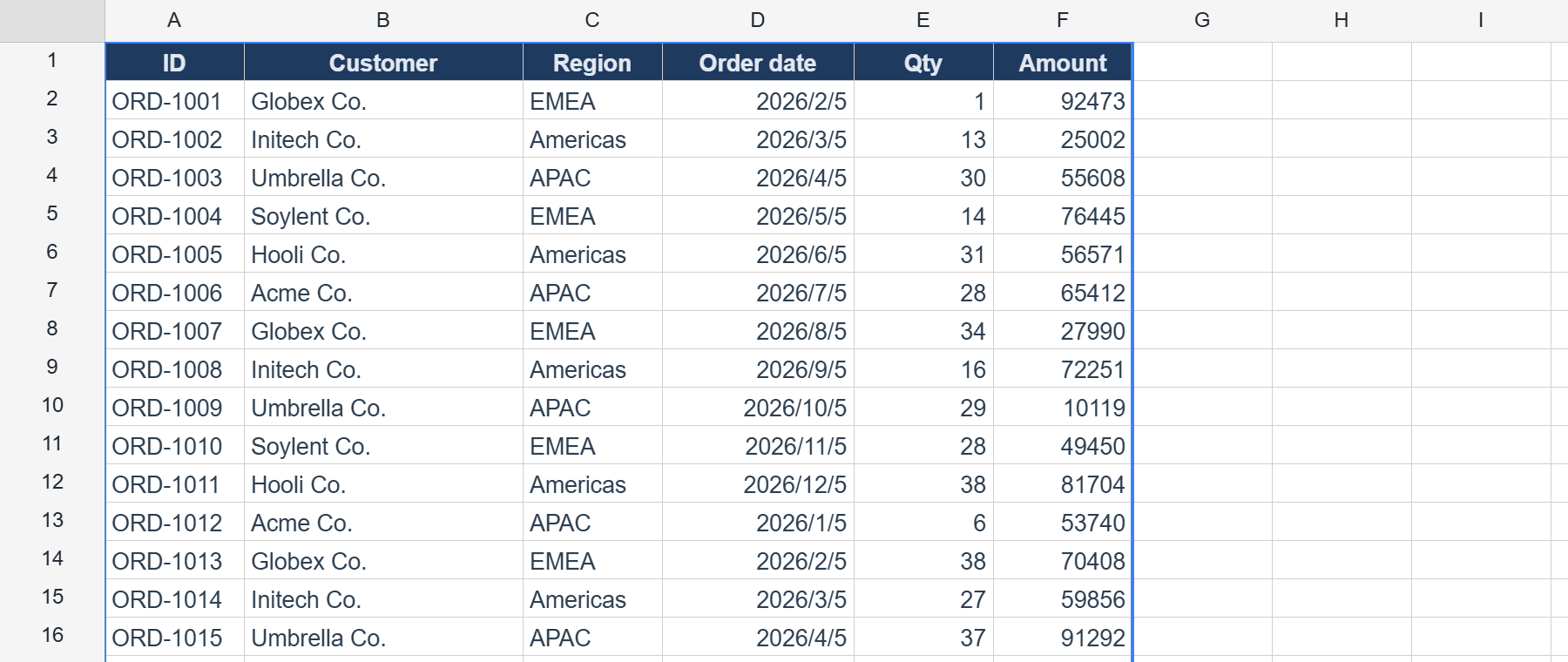
With the preview on, the sheet is divided into page bands computed from the current print settings. Drag a break line to pin it as a manual break, or insert breaks programmatically.
Since v1.6.0 dragging a page-break line — or a print-area edge — goes on the undo stack like every other pointer edit: one drag, one Ctrl+Z. Undoing a break move also restores the print scale that drag lowered, and any manual breaks it swept over. Re-dropping a line exactly where it already sat costs no undo step; dropping an automatic line in place still counts, because that pins it as manual.
Manual page breaks
ws.insertRowPageBreak(40)     // force a new page starting at row 40
ws.insertColumnPageBreak(8)   // force a new page starting at column 8
Manual breaks are honored by both the preview and PDF export. To inspect the resulting page bands:
const pages = ws.getPrintPageRanges() // PrintRange[] in page order
pages.forEach((p, i) => {
  console.log(`Page ${i + 1}: rows ${p.topRow}–${p.bottomRow}, cols ${p.leftColumn}–${p.rightColumn}`)
})
Each PrintRange is { topRow, leftColumn, bottomRow, rightColumn } (0-based, inclusive). Pass a PageOrder to getPrintPageRanges(order?) to override pageOrder for one call.
From layout to paginated output
Because PDF export can reuse this exact model, page layout is the single source of truth for pagination:
import { preloadPdfFont } from '@reogrid/pro'

ws.setPrintSettings({ paperSize: 'A4', orientation: 'portrait', scale: 0.9 })
ws.insertRowPageBreak(50)

await preloadPdfFont('ja')
// usePageBreaks makes the PDF break in exactly the same places as the preview
grid.saveAsPdf({ locale: 'ja', usePageBreaks: true, filename: 'ledger.pdf' })
xlsx round-trip
Print settings and manual page breaks are written to and read back from .xlsx (<pageSetup>, <pageMargins>, <rowBreaks> / <colBreaks>), so a file exported from ReoGrid opens in Excel with the same page setup — and vice versa. They also round-trip through ReoGrid JSON.
The print area
setPrintableRange(...) restricts printing to one rectangle:
ws.setPrintableRange({ topRow: 0, leftColumn: 0, bottomRow: 49, rightColumn: 7 })Before v1.6.0 this round-tripped through ReoGrid JSON only, so saving to xlsx printed the whole sheet again on the next open. It now travels as Excel’s own _xlnm.Print_Area defined name, and is read back the same way.
What prints without a print area
With no print area set, the printed range runs from A1 to the last cell that leaves a mark on paper:
- a value,
- a border — including blank bordered boxes,
- a fill that is not white,
- the full extent of a merged cell (not just its first cell, where the text sits),
- an image, such as a logo or a stamp.
Formatting that prints nothing — a font, a number format, a white fill — does not extend it, so it cannot add blank pages. Ask the worksheet where that range ends:
ws.getPrintContentExtent() // { maxRow, maxColumn } (0-based), or null when nothing printsThe page-break preview, PDF export (with or without usePageBreaks) and paged browser print (printWorksheet(ws, { usePageBreaks: true })) all use this range. Before v1.7.0 it ended at the last cell holding a value, so a typical form — a bordered table whose rows are still empty, a merged remarks field, a stamp box — was cut off at its last filled-in cell, and fit-to-pages shrank the sheet to fit only that part. Now the whole form prints, and fitToPages fits all of it.
Related
- PDF Export — render the paginated sheet to a real PDF with
usePageBreaks. - Print — overview of all printing routes and how to choose.
- Print to HTML — quick print via the browser’s native dialog.
- XLSX Import & Export — how the page setup travels with the file.
Sorry to hear that. What could be improved?