
Find & Replace
Since v1.5.0 the grid ships a built-in find bar on Ctrl/Cmd+F (find) and Ctrl/Cmd+H (replace). Every match is highlighted on the canvas, Enter steps through them, and replace-all undoes in one step.
Available in both editions — find and replace are basic editing, like copy/paste.
The built-in find bar
Nothing to wire up: press Ctrl/Cmd+F in a focused grid. The bar offers
- Match case — case-sensitive comparison
- Entire cell — the whole cell text must equal the query (Excel’s セル内容が完全に同一)
- Regex — treat the query as a JavaScript regular expression
- Scope —
Sheet,Selection, orWorkbook
Enter / Shift+Enter move to the next / previous match, and Escape closes the bar and clears the highlight.
The Workbook scope sweeps every sheet and activates the one a match lands on, so the status reads 2/4 · Sheet1.
import { createReogrid } from '@reogrid/pro'

const grid = createReogrid({ workspace: '#app' })

grid.showFindBar()            // open on the find tab
grid.showFindBar('replace')   // open on the replace tab
grid.hideFindBar()
To drive your own UI instead, turn the built-in bar off and call the API below:
const grid = createReogrid({ workspace: '#app', showFindBar: false })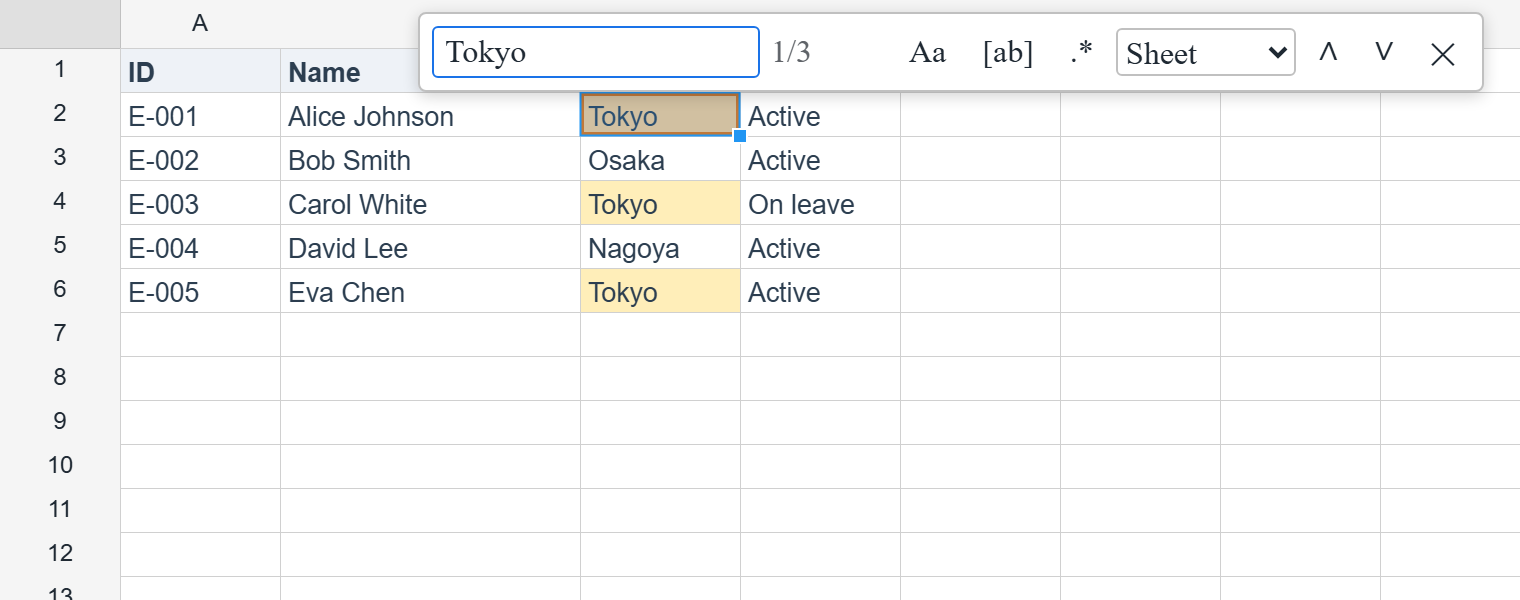
Programmatic search
// Step through matches — `find` starts a search session, `findNext` walks it
const first = grid.find('Tokyo')        // FindMatch | null → { row, column, text }
grid.findNext()
grid.findPrevious()

// Collect every match without starting a session
const all = grid.findAll('Tokyo', { matchCase: true })

grid.clearFind()   // end the session and remove the highlight
find selects and scrolls to the match; findAll is a pure read.
FindOptions
| Option | Type | Default | Description |
|---|---|---|---|
matchCase | boolean | false | Case-sensitive comparison. |
wholeCell | boolean | false | The whole cell text must equal the query. |
useRegex | boolean | false | Treat the query as a JavaScript regular expression. |
lookIn | 'formula' | 'value' | 'formula' | Compare against the raw input (=SUM(A1:A3)) or the displayed text. |
order | 'byRow' | 'byColumn' | 'byRow' | Scan order. |
range | FindRange | null | null | Restrict to a rectangle { topRow, leftColumn, bottomRow, rightColumn }. |
includeHidden | boolean | false | Include rows/columns hidden by the user or a filter. |
scope | 'sheet' | 'selection' | 'workbook' | 'sheet' | Instance-level only — where to search. |
lookIn: 'value' searches what the user sees (formula results, number formats applied). A replace always writes back to the raw input, mirroring Excel, whose 置換 operates on formulas — so a formula cell whose result matched is never rewritten.
Replacing
grid.replace('Tokyo', 'Osaka')                     // the current match only
const n = grid.replaceAll('Tokyo', 'Osaka')        // → number of cells changed

// Same options as a search
grid.replaceAll('cat', 'dog', { matchCase: true, wholeCell: true })
Both are undoable in a single step (Ctrl/Cmd+Z restores the exact prior text, dates included) and skip protected cells on a locked sheet.
A replace rewrites every occurrence inside a cell, as Excel does — replaceAll('a', 'x') turns banana into bxnxnx. Use wholeCell when you mean the whole value.
Regular expressions
grid.replaceAll('\\s+', ' ', { useRegex: true })   // collapse runs of whitespace
grid.findAll('^INV-\\d{4}$', { useRegex: true })   // invoice ids
An invalid pattern throws a SyntaxError; the built-in bar shows Invalid pattern instead of throwing.
What is skipped
- Hidden rows and columns, unless
includeHidden: true - Merged followers — the data lives on the merge’s anchor cell, which is scanned
- Unloaded rows of a delay-load data source (scanning one would trigger a fetch per row)
A structural edit (insert/delete row or column) clears the search session, since the highlight is keyed by coordinate — search again afterwards.
Per-worksheet API
The same operations exist on the worksheet when you want to target one sheet explicitly rather than following the active one:
const ws = grid.worksheet
ws.findAll('Tokyo')
ws.find('Tokyo')
ws.replaceAll('Tokyo', 'Osaka')
ws.clearFind()
The instance-level methods (grid.find, …) add the scope handling and route undo to the right sheet’s stack, so prefer them in an app.
Related
- Selection & Events — where the cursor lands after a match.
- Undo / Redo — replace-all is one entry on the stack.
- Protection — protected cells are skipped by a replace.
Sorry to hear that. What could be improved?