
The “invoice” is the canonical small spreadsheet use case: a header, line items with quantity × price, a subtotal, tax, total. In Vue you might reach for a <table> with a pile of computed properties doing the arithmetic, and a separate “download as Excel” button that produces a barely-formatted CSV.
Here is the same thing as a real spreadsheet — editable, formula-backed, and one method call away from a downloadable .xlsx — inside a single Vue 3 SFC:
<script setup lang="ts">
import { Reogrid, type ReogridInstance } from '@reogrid/pro/vue';

const items: Array<[string, number, number]> = [
  ['Web system development (core)', 1, 200_000],
  ['Add-on: API integration',       2,  30_000],
  ['Testing & QA',                  1,  20_000],
  ['Documentation',                 1,  10_000],
  ['Project management',            1,  10_000],
];

function onReady({ worksheet: ws }: ReogridInstance) {
  ws.setGridSize(25, 5);

  ws.showGridLines = false;

  // Column widths — the item column needs room for its text
  [52, 260, 72, 110, 120].forEach((w, c) => { ws.column(c).width = w; });
  // Title bar
  ws.range('A1:E1').merge().setValue('INVOICE')
    .setStyle({ fontSize: 18, bold: true, textAlign: 'center', backgroundColor: '#1e3a5f', color: '#ffffff' });
  ws.row(0).height = 48;

  // Meta
  ws.cell('A3').setValue('Bill to:').setStyle({ bold: true });
  ws.cell('B3').setValue('Acme Corp., Yamada-san');
  ws.cell('D3').setValue('Date:').setStyle({ textAlign: 'right', color: '#64748b' });
  ws.cell('E3').setValue('2026-05-29');
  ws.cell('D4').setValue('Invoice #:').setStyle({ textAlign: 'right', color: '#64748b' });
  ws.cell('E4').setValue('INV-2026-001');

  // Table header
  const hdr = { bold: true, backgroundColor: '#1e3a5f', color: '#ffffff' };
  ws.cell('A7').setValue('No.').setStyle({ ...hdr, textAlign: 'center' });
  ws.cell('B7').setValue('Item').setStyle(hdr);
  ws.cell('C7').setValue('Qty').setStyle({ ...hdr, textAlign: 'center' });
  ws.cell('D7').setValue('Unit price').setStyle({ ...hdr, textAlign: 'right' });
  ws.cell('E7').setValue('Amount').setStyle({ ...hdr, textAlign: 'right' });

  // Line items — qty and unit price are editable; amount is a formula
  items.forEach(([name, qty, price], i) => {
    const row = 8 + i;                       // 1-based A1 row
    const editable = { backgroundColor: '#fffbeb', color: '#92400e', bold: true };

    ws.cell(`A${row}`).setValue(String(i + 1)).setStyle({ textAlign: 'center' });
    ws.cell(`B${row}`).setValue(name);
    ws.setCellInput(row - 1, 2, String(qty));          ws.setCellStyle(row - 1, 2, { ...editable, textAlign: 'center' });
    ws.setCellInput(row - 1, 3, String(price));        ws.setCellStyle(row - 1, 3, { ...editable, textAlign: 'right' });
    ws.setCellNumberFormat(row - 1, 3, '#,##0');
    ws.setCellInput(row - 1, 4, `=C${row}*D${row}`);   // amount formula
    ws.setCellNumberFormat(row - 1, 4, '#,##0');
  });

  const lastItemRow = 8 + items.length - 1;
  const sumRow = lastItemRow + 1, taxRow = sumRow + 1, totalRow = taxRow + 1;

  // Subtotal / tax / total — all formulas
  ws.range(`A${sumRow}:D${sumRow}`).merge();
  ws.cell(`A${sumRow}`).setValue('Subtotal').setStyle({ textAlign: 'right', backgroundColor: '#f0f4f8' });
  ws.setCellInput(sumRow - 1, 4, `=SUM(E8:E${lastItemRow})`);
  ws.setCellNumberFormat(sumRow - 1, 4, '#,##0');

  ws.range(`A${taxRow}:D${taxRow}`).merge();
  ws.cell(`A${taxRow}`).setValue('Tax (10%)').setStyle({ textAlign: 'right', backgroundColor: '#f0f4f8' });
  ws.setCellInput(taxRow - 1, 4, `=E${sumRow}*0.1`);
  ws.setCellNumberFormat(taxRow - 1, 4, '#,##0');

  ws.range(`A${totalRow}:D${totalRow}`).merge();
  ws.cell(`A${totalRow}`).setValue('Total (incl. tax)').setStyle({ bold: true, textAlign: 'right', backgroundColor: '#dbeafe' });
  ws.setCellInput(totalRow - 1, 4, `=E${sumRow}+E${taxRow}`);
  ws.setCellNumberFormat(totalRow - 1, 4, '¥#,##0');
  ws.setCellStyle(totalRow - 1, 4, { bold: true, textAlign: 'right', backgroundColor: '#dbeafe', color: '#1e3a5f', fontSize: 13 });

  // Borders on the table
  ws.range(`A7:E${totalRow}`).border({ style: 'solid', color: '#475569', width: 1.5 });
}
</script>

<template>
  <Reogrid
    :options="{ animation: true, licenseKey: 'YOUR-LICENSE-KEY' }"
    style="width: 100%; height: 700px"
    @ready="onReady"
  />
</template>
That is the entire component. The user can click any qty or unit-price cell, type a new number, hit Enter, and watch the amount, subtotal, tax, and total recalculate immediately.

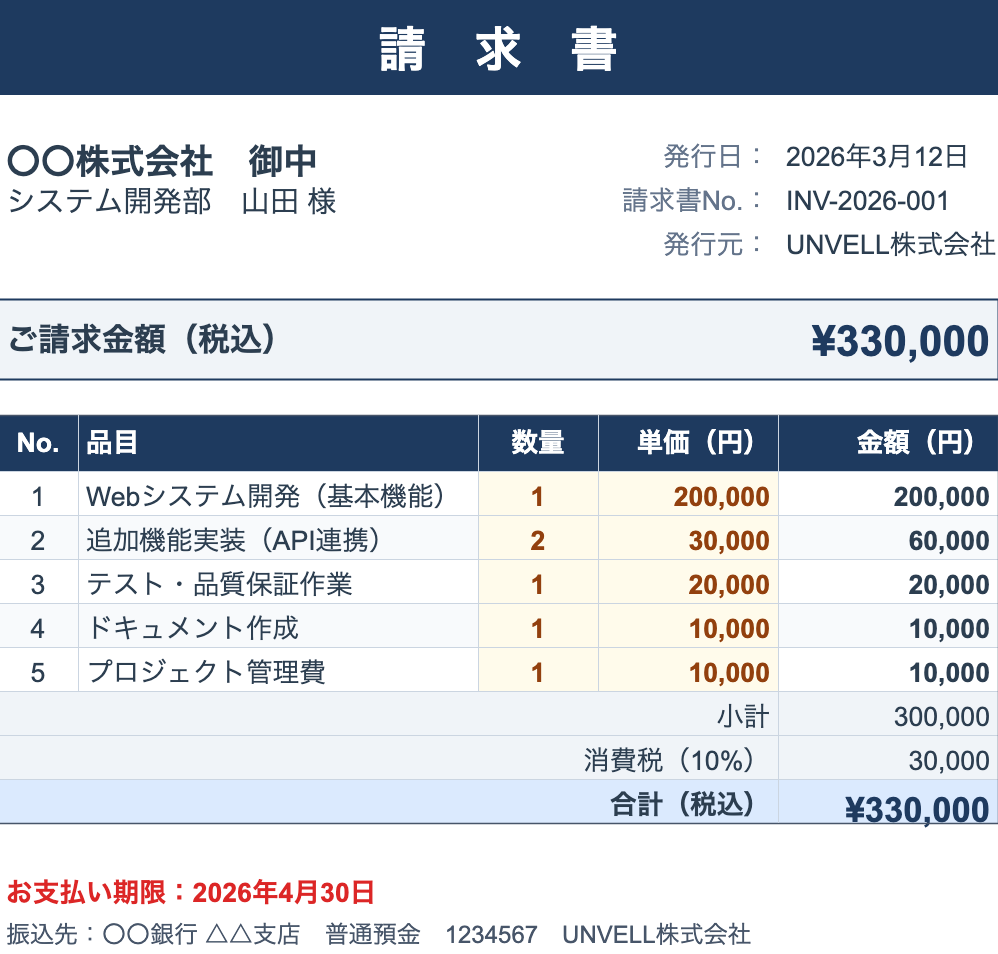
The Invoice demo on this site is essentially this code — try it live.
If you came here from the React version, notice that the onReady body is byte-for-byte identical. The grid API is the same across frameworks; only the wrapper differs — @ready instead of onReady, :options instead of options, and a Vue ref instead of a React ref.
The three things that make this work
1. setCellInput vs setValue
This is the single most common question. Both go through the same code path as a user typing into the cell, so a string starting with = becomes a live formula either way:
worksheet.cell('A1').setValue('Hello');   // string "Hello"
worksheet.cell('B1').setValue(42);        // number 42
worksheet.cell('C1').setValue('=A1+B1');  // ← live formula, evaluated on every dependency change
The real difference is how you address the cell: cell('C1').setValue(...) is the A1-handle form, while setCellInput(row, col, ...) takes 0-based coordinates — convenient inside loops like the line items above:
worksheet.setCellInput(0, 2, '=A1+B1'); // same formula, 0-based row/columnWhen reading back, cell('C1').value returns the raw input — for a formula cell that is the formula text ('=A1+B1'), not the computed result. To read computed results, use worksheet.getDisplayText(row, col) for the formatted text or worksheet.getCellNumericValue(row, col) for the number.
2. Number formats are Excel-compatible
setCellNumberFormat(row, col, '#,##0') accepts the same format pattern syntax as Excel. A few useful ones for invoices:
| Pattern | Renders | Notes |
|---|---|---|
#,##0 | 200,000 | Thousands separator, no decimals |
#,##0.00 | 200,000.00 | Two decimals |
¥#,##0 | ¥200,000 | Currency prefix |
$#,##0.00 | $1,250.00 | Dollar |
0.00% | 12.50% | Percentage |
yyyy-mm-dd | 2026-05-29 | ISO date |
#,##0;[Red]-#,##0 | red negatives | Conditional color section |
See the number formatting doc for the full grammar including conditional sections and Japanese era formats.
3. The grid is the source of truth — Vue reactivity subscribes
ReoGrid Web is an imperative canvas component. The right pattern is “the grid owns the data, Vue subscribes,” not “a ref owns the data and the grid renders it.” This is the same mental model as the React version, but Vue makes the subscribing half especially clean.
To get the grid instance, put a template ref on the component and read .instance off it. Then hook into @cell-value-change to mirror the recomputed total into a reactive ref your UI can render:
<script setup lang="ts">
import { ref } from 'vue';
import { Reogrid, type ReogridInstance } from '@reogrid/pro/vue';

const gridRef = ref<{ instance: ReogridInstance | null }>();
const total = ref(0);

function onReady({ worksheet: ws }: ReogridInstance) { /* setup as above */ }

function onCellValueChange() {
  const ws = gridRef.value?.instance?.worksheet;
  if (!ws) return;
  // Read the recomputed total cell after any edit — E15 is (14, 4) in 0-based coords
  total.value = ws.getCellNumericValue(14, 4) || 0;
}
</script>

<template>
  <Reogrid
    ref="gridRef"
    style="width: 100%; height: 700px"
    @ready="onReady"
    @cell-value-change="onCellValueChange"
  />
  <p>Total: <strong>¥{{ total.toLocaleString() }}</strong></p>
</template>
Do not try to bind each cell with v-model — you would defeat the canvas renderer’s whole reason for existing, and Vue would have nothing to diff anyway because the grid paints to a <canvas>, not the DOM. The grid is the source of truth for cell data; your refs and computeds hold derived/summary values that flow out of the grid.
For a deeper treatment of this pattern, see the Sync Grid with React State recipe — the principle is framework-agnostic; substitute ref/computed for useState.
Adding a “Download as xlsx” button
Pro-tier only, but trivial — saveAsXlsx() builds the file and triggers the browser download in one call. Reach the worksheet through the same gridRef:
<script setup lang="ts">
function downloadXlsx() {
  gridRef.value?.instance?.worksheet.saveAsXlsx({ filename: 'invoice.xlsx' });
}
</script>

<template>
  <button @click="downloadXlsx">Download as xlsx</button>
</template>
Both options are optional: filename defaults to reogrid.xlsx, and sheetName defaults to Sheet1. If you need the raw bytes (for example, to upload the file instead of downloading it), use the lower-level buildXlsxFromSnapshot() re-exported from the package root.
The exported file preserves the merged header, the column widths, all styles, all formulas (Excel re-evaluates them — they are not frozen values), the number formats, and the borders. Open it in Excel; everything that was in the grid is there.
Where to go next
- Add a logo image: images embedded in an imported
.xlsxare displayed automatically — design the logo into your template file. - Conditional formatting: highlight overdue line items in red. See Conditional Formatting.
- Save and restore as JSON: use
writeReoGridJson/readReoGridJsonfor lossless round-trips through your backend without going through xlsx. - React version: the exact same
onReadylogic works with<Reogrid>from@reogrid/pro/react— swap@readyback foronReady. See Building a React invoice with editable formulas.
The companion Build an Invoice recipe covers a Lite-edition version (no SUM, but arithmetic line totals work) for the free tier.