
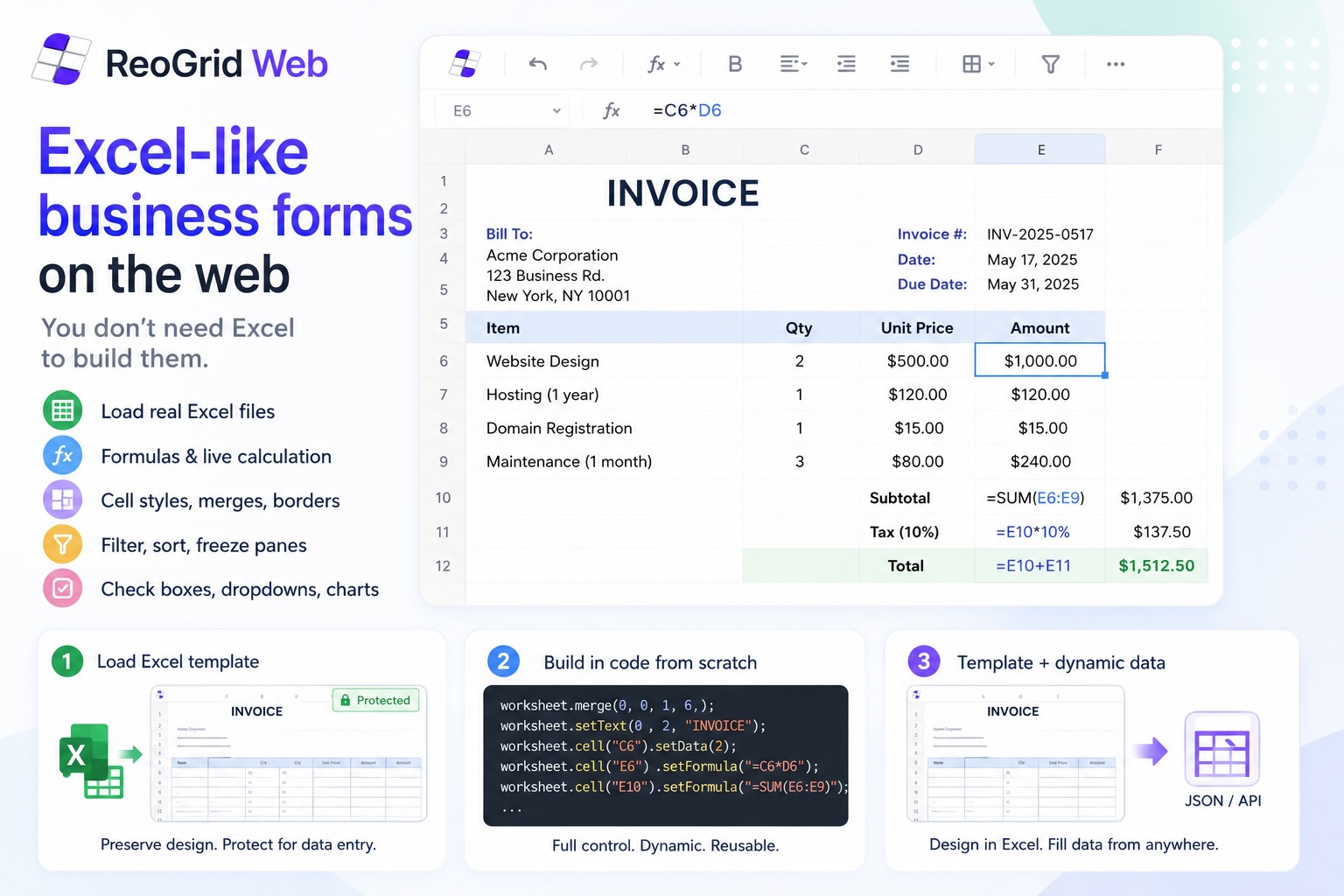
Invoices, quotations, purchase orders, delivery notes — these are the spreadsheet forms every business produces. Most of them live in Excel today. When a requirement arrives to “put this in the web app,” the usual answer is a mix of HTML tables, CSS, and a PDF-generation library. The result looks roughly right, but it never quite feels like Excel.
What many developers don’t know: the browser can load a real .xlsx file, render it with full fidelity, and let users interact with it — no server, no Excel, no plugin needed. That’s the gap ReoGrid Web was built to close.
What ReoGrid Web actually gives you
ReoGrid Web is a Canvas-based spreadsheet engine that runs in the browser and embeds inside your existing app — React, Vue, or plain JavaScript. It is not a standalone application like Google Sheets; it’s a component you drop into your own UI.
For business forms specifically, here is what it brings.
Excel-compatible presentation
Forms live and die by their visual precision. ReoGrid Web matches Excel’s formatting model:
- Cell styles — font, size, color, bold, italic, underline, background
- Borders — width, color, and style (solid / dashed / dotted) per edge
- Cell merging — title rows, summary blocks, multi-column labels
- Number and date formats —
$#,##0.00,dd/mm/yyyy, percentage — the same pattern syntax Excel uses
If you’ve built a form in Excel before, the mental model transfers directly.
Formulas and live recalculation
Quantity × unit price = amount. Subtotal, tax, total. These relationships are written as formulas — the same syntax as Excel: =C2*D2, =SUM(E10:E14), =E15*0.1. When the user edits a cell, every dependent formula recalculates automatically. (Arithmetic like =C2*D2 works on the free Lite tier; built-in functions such as SUM require Pro.)
ReoGrid Web Pro also highlights referenced cells in color while a formula is being edited, so users can see at a glance which cells feed a calculation.
Extended spreadsheet features
Beyond rendering, the component works as a full spreadsheet:
- Filter and sort — let users find and reorder rows
- Cell types — checkboxes, dropdowns, buttons, progress bars, ratings, sparklines
- Freeze panes — keep header rows locked while scrolling large data sets
- Outline grouping — collapse and expand row and column groups
- Conditional formatting — auto-style cells based on their values
Web-native performance
Because ReoGrid Web renders to a single <canvas> element, it sidesteps the DOM layout pipeline entirely. The practical result:
- 10,000 rows render at 60 fps with smooth scrolling
suspendRender()/resumeRender()batches bulk writes into a single paint- The bulk-load API is purpose-built for writing thousands of cells at once
Excel files load directly in the browser
One of the most underused capabilities: you can load an existing .xlsx file directly in the browser, with no server round-trip.
fileInput.addEventListener('change', async (e) => {
  const file = e.target.files[0];
  await grid.loadFromFile(file);   // parse and render — entirely in-browser
});
Cell styles, borders, merged cells, freeze panes, formulas, and conditional formatting all survive the round-trip. An Excel file that took hours to design can be on screen in a web app within a single sprint.
Three ways to build a form
There is no single “right” approach. Choose based on your existing assets and workflow.
Approach 1 — Load an Excel template, protect it for data entry
“I have an existing Excel form. I want it in the browser without redesigning it.”
This is the fastest path from zero to working form.
- Design the form in Excel as you normally would
- Save it as
.xlsxand ship it with the app (or host it on a CDN) - Load it at runtime with
loadFromUrl() - Use cell protection to lock the layout and unlock only the cells where the user should type
await grid.loadFromUrl('/templates/quotation.xlsx');

const { worksheet } = grid;
worksheet.protected = true;                       // protect the whole sheet
worksheet.range('C11:C15').setLock('unlocked');   // quantity column — editable
worksheet.range('D11:D15').setLock('unlocked');   // unit price column — editable
The Excel file is now a form. Designers manage the layout in Excel; engineers handle the application logic. When the form design changes, you replace the file — the code stays the same. When the user finishes, saveAsXlsx() hands them back a completed .xlsx.
Approach 2 — Build the worksheet in code from scratch
“I want full programmatic control. No template files to manage.”
Every cell, style, formula, and border is written in code. This suits applications where the form structure is driven by API data, or where you want a single source of truth without external files.
// Merge and style a title row
ws.range('A1:E1').merge()
  .setValue('QUOTATION')
  .setStyle({ fontSize: 18, bold: true, backgroundColor: '#1e3a5f', color: '#fff' });

// Generate line items from data
items.forEach(({ name, qty, price }, i) => {
  ws.cell(`B${10 + i}`).setValue(name);
  ws.setCellInput(9 + i, 2, String(qty));
  ws.setCellInput(9 + i, 3, String(price));
  ws.setCellInput(9 + i, 4, `=C${10+i}*D${10+i}`);  // formula for amount
});
For a complete walkthrough of this approach, see Building a React invoice with editable formulas in ~60 lines.
Approach 3 — Excel template + dynamic data injection (hybrid)
“I want the layout in Excel but the data coming from our system.”
This is the most common pattern in practice. Load the template for its visual structure, then overwrite only the data cells programmatically.
// Load the layout
await grid.loadFromUrl('/templates/invoice-base.xlsx');

// Inject data from your API
const { client, issueDate, items } = await fetchInvoice(id);
worksheet.cell('B3').setValue(client.name);
worksheet.cell('E3').setValue(issueDate);

worksheet.suspendRender();
items.forEach(({ name, qty, price }, i) => {
  worksheet.cell(`B${10 + i}`).setValue(name);
  worksheet.setCellInput(9 + i, 2, String(qty));
  worksheet.setCellInput(9 + i, 3, String(price));
});
worksheet.resumeRender();
Layout changes are handled by replacing the Excel file — no code changes needed. Data model changes are handled in the injection code — no design work needed. The two concerns are cleanly separated.
Choosing an approach
| Situation | Recommended |
|---|---|
| You have existing Excel templates to reuse | Approach 1 |
| Full code control, no external files | Approach 2 |
| Layout designed in Excel, data from a system | Approach 3 |
| Non-engineers manage the form layout | Approach 1 or 3 |
| API-driven SaaS with dynamic document generation | Approach 2 or 3 |
The point: Excel as a starting point, not the end
ReoGrid Web’s value for business forms is not that it replaces Excel — it’s that it removes Excel from your users’ workflow. The form lives in the browser. Data entry, calculation, and document output all happen there. Users don’t need to open a local application, save a file, email it, or deal with version conflicts.
The three paths give you flexibility in how much of Excel you bring in. Import a finished template and get started immediately. Build from code for full control. Mix both for the clearest separation between design and data.
Try it now
The invoice demo on this site runs live in your browser — edit quantities and unit prices and watch every formula recalculate in real time.
npm install @reogrid/lite     # free tier
npm install @reogrid/pro      # full feature set (xlsx export, built-in functions, …)
Further reading: