
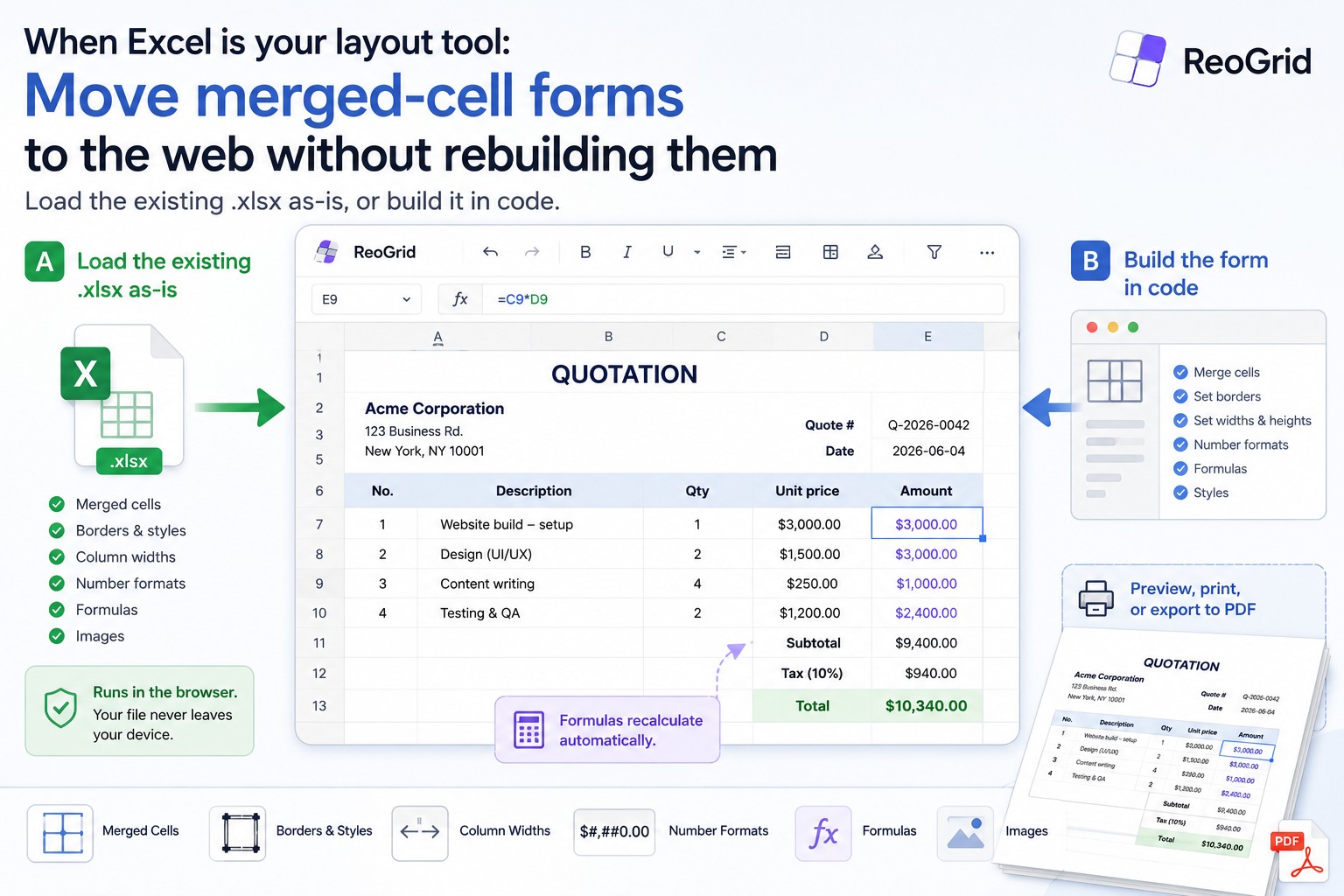
A surprising amount of what people call a “spreadsheet” is not a data table at all — it’s a form. Quotations, invoices, purchase orders, expense claims, inspection sheets: someone squared up the cells, merged them into boxes, drew borders, and used Excel as a sheet of graph paper. The cells hold layout, not data.
When a requirement lands to “put this form in the web app,” the reflex is to rebuild it: HTML tables, CSS to approximate the borders, a PDF library for printing. You quickly drown in rowspan/colspan, the borders shift when printed, the column widths never quite match, and you reimplement the formulas by hand. The premise — that you have to rebuild it — is the mistake.
ReoGrid Web takes a different route: treat the form as an actual spreadsheet, preserving merged cells, borders, and number formats, and read or write it right in the browser. This article shows the two practical paths — load the existing .xlsx as-is, or build it in code — with real examples.
Prefer the high-level overview first? See Excel-like business forms on the web for the three approaches at a glance. This article is the hands-on, code-first companion.
Why layout-shaped spreadsheets are hard to “web-ify”
A plain data grid and a business form are different animals, because a form carries layout, not just data:
- Merged cells run across rows and columns to build title bars and label boxes
- Borders — their weight and placement — are part of the format
- Column widths and row heights are fixed, so the printed result looks a certain way
- Cells contain formulas (subtotals, tax, totals)
Approximate all of that with an HTML table and it looks roughly right but never quite feels like the original. Worse, you can’t reuse the Excel template the business already has — you’re recreating a years-old invoice layout pixel by pixel.
Path A: load the existing form .xlsx, untouched
The fastest move is to not rebuild at all. Load the existing .xlsx template straight into the grid.
import { createReogrid } from '@reogrid/lite';

const grid = createReogrid('#grid');

// From a file the user picks
const input = document.querySelector<HTMLInputElement>('#file')!;
input.addEventListener('change', async (e) => {
  const file = (e.target as HTMLInputElement).files?.[0];
  if (file) await grid.loadFromFile(file);
});

// Or from a template on the server
await grid.loadFromUrl('/templates/quotation.xlsx');
loadFromFile resolves after merged cells, borders, number formats, row/column sizes, and embedded images are all applied. You get the form’s exact appearance preserved, rendered as an editable grid — zero “porting” work into HTML.
And it all runs in the browser: the file never leaves the user’s device. Being able to handle confidential business forms without uploading them to a server is a real-world win.
Importing works on the free Lite tier. See the XLSX I/O docs.
Path B: build the form in code
When there’s no template, or you want to generate the document dynamically, build it in code. The key is that ReoGrid is a real spreadsheet, not a data grid — merging, borders, widths, number formats, and formulas are all part of the API.
Here’s a complete quotation built from scratch:
import { createReogrid, NumberFormat } from '@reogrid/lite';

const { worksheet } = createReogrid('#grid');
const money = NumberFormat.currency('$', 2); // 300000 → $300,000.00

worksheet.suspendRender(); // batch the build (no flicker)

// ── Column widths: define meaningful columns instead of graph paper ──
worksheet.column('A').width = 48;   // No.
worksheet.column('B').width = 260;  // Description
worksheet.column('C').width = 72;   // Qty
worksheet.column('D').width = 120;  // Unit price
worksheet.column('E').width = 140;  // Amount

// ── Title bar (merge A1:E1) ──
worksheet.range('A1:E1')
  .merge()
  .setValue('QUOTATION')
  .setStyle({ bold: true, fontSize: 20, textAlign: 'center', verticalAlign: 'middle', color: '#1e3a5f' });
worksheet.row(0).height = 44;

// ── Recipient / meta ──
worksheet.cell('A3').setValue('Acme Corp.').setStyle({ bold: true, fontSize: 12 });
worksheet.cell('D3').setValue('Quote #').setStyle({ bold: true, textAlign: 'right' });
worksheet.cell('E3').setValue('Q-2026-0042');
worksheet.cell('D4').setValue('Date').setStyle({ bold: true, textAlign: 'right' });
worksheet.cell('E4').setValue('2026-06-04');

// ── Line-item header ──
worksheet.range('A6:E6').setStyle({ bold: true, textAlign: 'center', backgroundColor: '#eef2f7', color: '#1e3a5f' });
worksheet.cell('A6').setValue('No.');
worksheet.cell('B6').setValue('Description');
worksheet.cell('C6').setValue('Qty');
worksheet.cell('D6').setValue('Unit price');
worksheet.cell('E6').setValue('Amount');

// ── Line items ──
const items = [
  { name: 'Website build — setup',   qty: 1,  price: 30000 },
  { name: 'Maintenance (monthly)',   qty: 12, price: 2000 },
  { name: 'Domain & SSL certificate', qty: 1, price: 1500 },
];
items.forEach((it, i) => {
  const r = 7 + i;                                  // rows 7, 8, 9 (A1 style)
  worksheet.cell(`A${r}`).setValue(i + 1).setStyle({ textAlign: 'center' });
  worksheet.cell(`B${r}`).setValue(it.name);
  worksheet.cell(`C${r}`).setValue(it.qty).setStyle({ textAlign: 'center' });
  worksheet.cell(`D${r}`).setValue(it.price);
  worksheet.setCellInput(r - 1, 4, `=C${r}*D${r}`); // amount = qty × unit price
});

// ── Subtotal / tax / total ──
worksheet.cell('D10').setValue('Subtotal').setStyle({ bold: true, textAlign: 'right' });
worksheet.setCellInput(9, 4, '=E7+E8+E9');
worksheet.cell('D11').setValue('Tax (10%)').setStyle({ bold: true, textAlign: 'right' });
worksheet.setCellInput(10, 4, '=E10*0.1');
worksheet.cell('D12').setValue('Total').setStyle({ bold: true, textAlign: 'right', fontSize: 12 });
worksheet.setCellInput(11, 4, '=E10+E11');

// ── Currency format on price/amount columns ──
worksheet.range('D7:D9').setFormat(money);
worksheet.range('E7:E12').setFormat(money);

// ── Borders ──
worksheet.range('A6:E9').border({ style: 'solid', color: '#cbd5e1' });                     // table body
worksheet.range('A6:E6').border({ style: 'solid', color: '#1e3a5f', width: 2 }, ['bottom']); // header rule
worksheet.range('A12:E12').border({ style: 'solid', color: '#1e3a5f', width: 2 }, ['top']);  // total rule

worksheet.resumeRender();
A few things worth calling out:
range('A1:E1').merge()collapses a range into one logical cell. The value and style live on the anchor (top-left). See the Merging Cells docs.- Formulas are plain
=-prefixed inputs —setValue('=C7*D7')andsetCellInput(row, col, '=C7*D7')both create live formulas. Note thatsetCellInput()takes 0-based (row, column) arguments, while the cell references inside the formula are A1-style (1-based rows) — watch for off-by-one in loops. - Arithmetic like
=C7*D7works on the free Lite tier. Built-in functions such asSUMare Pro (you could write the subtotal as=SUM(E7:E9)). NumberFormat.currency('$', 2)produces$300,000.00. Symbol and position are configurable — see the Number Formatting docs.
Locale-specific formats come along for free
Because the format codes are Excel-compatible, locale conventions are just format strings — including ones Western tooling rarely handles, like Japanese era dates and red-triangle negatives common in Asian financial statements.
// Red negative — show losses as a red triangle (common in P&L statements)
worksheet.range('E7:E12').setFormat('#,##0;[Red]▲#,##0');

// Japanese era date — e.g. Reiwa 6 / 令和6年6月4日
worksheet.cell('E4').setFormat('ggge"年"m"月"d"日"');
See the Japanese era & color formats demo for era dates (令和 / 平成 / 昭和) and [Red] / [赤] bracket colors in a working P&L sheet.
Round-trip back to Excel
In most businesses the request eventually comes: “just send me the Excel.” Export the form your users edited in the browser back to .xlsx.
import { createReogrid } from '@reogrid/pro';

const { worksheet } = createReogrid('#grid', { licenseKey: 'YOUR-LICENSE-KEY' });
// ...load / edit the form...

worksheet.saveAsXlsx({
  filename: 'quotation_2026-06-04.xlsx',
  sheetName: 'Quote',
});
The loadXlsx → edit → saveAsXlsx round-trip preserves cell values, formulas (with cached results so Excel shows numbers immediately), styles, merged cells, borders, row/column sizes, and conditional formatting. The form you loaded comes back out looking the same. (Number formats and embedded images are currently import-only — they load fine but aren’t written on export.) Export is a Pro feature (see the save-as-xlsx recipe).
How this differs from rebuilding as an HTML table
| Rebuild as HTML table + CSS | Load / build with ReoGrid Web | |
|---|---|---|
| Merged cells | hand-written rowspan/colspan | merge() / preserved from the xlsx |
| Borders & widths | approximated in CSS (shift on print) | per-cell, matches Excel |
| Formulas (subtotal/tax/total) | reimplement yourself | built-in formula engine |
| Reusing an existing Excel template | not possible — rebuild from zero | loadFromFile, as-is |
| Writing back to Excel | needs a separate library | saveAsXlsx (Pro) |
| Cell-editing UI | build your own input/contenteditable | cell editing built in |
If the goal is to reproduce Excel’s look and feel on the web, starting from a grid means far less to build and far less to maintain.
Lite vs Pro
| Operation | Lite (free) | Pro |
|---|---|---|
xlsx import (loadFrom*) | ✅ | ✅ |
| Merge, borders, formats, widths | ✅ | ✅ |
Arithmetic formulas (=C7*D7) | ✅ | ✅ |
Built-in functions (SUM, etc.) | — | ✅ |
xlsx export (saveAsXlsx) | — | ✅ |
In short: reading, displaying, and editing layout-shaped forms in the browser is free; writing back to Excel is the Pro line.
Wrapping up
A form-shaped spreadsheet carries layout, not data. Rather than rebuilding it as an HTML table, treat it as a spreadsheet — load the existing .xlsx (Path A) or build it in code (Path B). Merged cells, borders, currency formats, and locale conventions all come along, entirely in the browser.
Try the Merge & Layout demo, start from the Build an Invoice recipe, or browse all the live demos.