

The form mode article built a sheet for people to fill in. This one is about what happens next: somebody reviews it. In Excel, a review happens in the margins. The reviewer selects a cell, adds a note, and the cell gets a red triangle in its corner. Hover it and you read “Finance: Up 62%. Which trips?”
People who work that way expect the same thing from a web app. They want to see the notes, write their own under their own name, find every open question without hovering over a hundred cells, and send the file back to Excel with the notes still on it.
ReoGrid Web has had Excel’s notes since v1.4, and has written them back to xlsx since v1.6. Version 1.7.1 added the last piece for review work: two hooks that let you replace the built-in hover bubble with a UI of your own. This article builds a budget sheet with review notes on it, then a small review UI around it: a notes panel, and an editor that opens from the red corner or a right-click.
Writing notes from code is a Pro feature. Reading them works in the free Lite edition too, and so does everything this article’s review UI needs to show notes: the markers, the list, the click event. The tier section has the details.
Notes, not threads
Excel has two kinds of cell annotation, and it’s worth being clear about which one this is.
- Notes are the classic kind: a yellow sticky box, a red triangle on the cell, one author, plain text. Excel called them “comments” until Office 365, and still makes them from Review → Notes → New Note (Shift+F2).
- Comments in today’s Excel are threads: a purple marker, replies, @mentions.
ReoGrid Web’s comments are the first kind, and the API keeps Excel’s older name for them. A note is one small object per cell:
| Field | Meaning |
|---|---|
id | Numeric id, assigned when the note is created |
row, col | The cell, 0-based |
text | Plain text; \n is a line break |
author | Optional name, shown in the bubble and saved to xlsx |
visible | Optional “pinned open” flag, kept for Excel |
Threaded comments aren’t modelled. If your users’ files contain them, Excel also writes a plain-note copy of each thread for older Excel versions, and that copy is what ReoGrid reads. Expect Excel’s “[Threaded comment] Your version of Excel allows you to read this threaded comment…” text in front of the message. Saving from ReoGrid then writes only the note, so the thread itself does not survive the trip.
Worked example: a budget under review
Six budget lines, last quarter against this quarter’s request, a change column, and three notes. Two of the notes are questions from Finance; the third is an explanation from the team that made the request.
import { createReogrid } from '@reogrid/pro';

const grid = createReogrid({ workspace: '#grid', licenseKey: 'YOUR_LICENSE_KEY' });
const ws = grid.worksheet;

ws.suspendRender();
[150, 110, 110, 90].forEach((w, c) => ws.column(c).setWidth(w));

const head = { bold: true, backgroundColor: '#1e3a5f', color: '#ffffff' } as const;
['Line item', 'Q4 actual', 'Q1 request', 'Change'].forEach((h, c) =>
  ws.cell(0, c).setValue(h).setStyle({ ...head, textAlign: c ? 'right' : 'left' }));

const LINES: [string, number, number][] = [
  ['Salaries',    182000, 186000],
  ['Contractors',  24000,  41000],
  ['Travel',        9800,  15900],
  ['Software',     12400,  12900],
  ['Events',        6000,  18000],
  ['Training',      3200,   2500],
];
LINES.forEach(([item, actual, request], i) => {
  const r = i + 2;                                    // sheet rows 2..7
  ws.cell(`A${r}`).setValue(item);
  ws.cell(`B${r}`).setValue(actual);
  ws.cell(`C${r}`).setValue(request);
  ws.cell(`D${r}`).setValue(`=C${r}/B${r}-1`);
});
ws.cell('A8').setValue('Total');
ws.cell('B8').setValue('=SUM(B2:B7)');
ws.cell('C8').setValue('=SUM(C2:C7)');
ws.cell('D8').setValue('=C8/B8-1');
ws.range('A8:D8').setStyle({ bold: true, backgroundColor: '#eef5ff' });
ws.range('B2:C8').setFormat('#,##0');
ws.range('D2:D8').setFormat('0.0%');
ws.resumeRender();

// ── The review notes ──────────────────────────────────────────────────
ws.setComment(2, 3, 'Agency retainer or new hires?\nA retainer belongs under Services.', { author: 'Finance' });
ws.setComment(3, 3, 'Up 62%. Which trips?\nPlease attach the event list.', { author: 'Finance' });
ws.cell('C6').setComment('Includes the March trade-show\nbooth (12,000).', { author: 'Marketing' });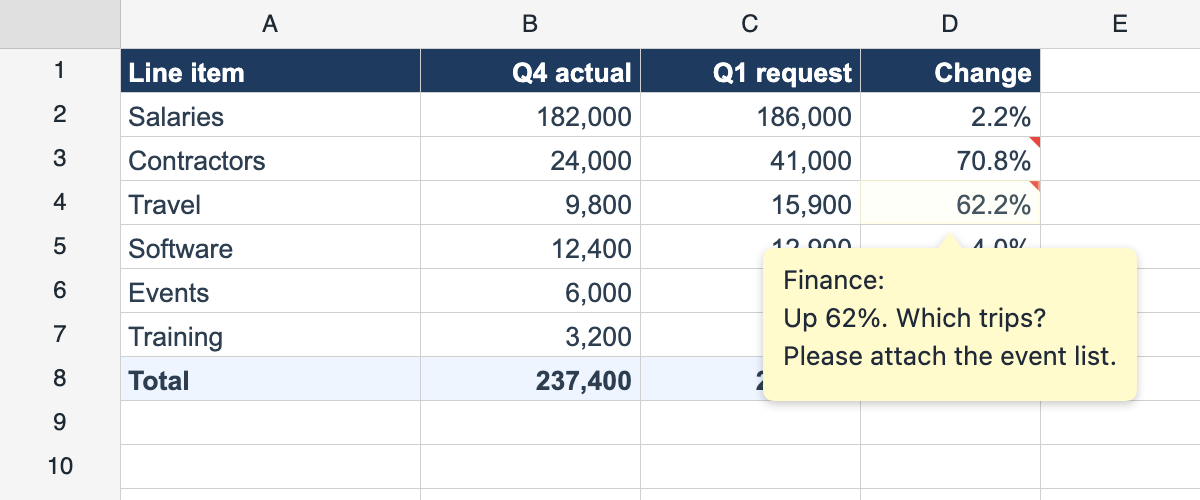
The notes take three lines. setComment(row, col, text, options) takes 0-based coordinates, so (3, 3) is D4. The cell handle form, ws.cell('C6').setComment(…), does the same from an A1 address. There’s also ws.range('B2:C4').setComment(…), which puts the note on the range’s top-left cell, because a note always belongs to one cell.
There is one note per cell. Calling setComment on a cell that already has one replaces it. The note keeps its id, but the text and author are overwritten.
Out of the box, that’s all the UI there is: a red triangle in the top-right corner of every noted cell, and a yellow bubble on hover that shows the author and the text, keeping your \n line breaks. For reading notes, that is enough. For reviewing, it isn’t, and that’s the next section.
A review UI of your own
The built-in bubble is read-only, and the grid has no “New note” command of its own. Writing a note is left to your app, which is reasonable: your app is the part that knows who is signed in, and so whose name goes on the note.
Since v1.7.1 you have two hooks for this:
showCommentBubble: falseturns off the hover bubble. The red triangles stay.onCommentClickfires when someone presses a cell’s red corner, and tells you which note and where the pointer is.
Together they let you put your own editor exactly where the built-in bubble would have been. Add a right-click for cells without a note yet, and a list of every note on the sheet, and you have a review tool. The page needs a place for each part:
<div class="review">
  <div id="grid"></div>
  <aside class="notes">
    <h3>Notes</h3>
    <ol id="note-list"></ol>
  </aside>
</div>

<div id="note-editor" hidden>
  <div class="note-ref"></div>
  <textarea rows="3"></textarea>
  <div class="note-actions">
    <button data-act="delete">Delete</button>
    <button data-act="cancel">Cancel</button>
    <button data-act="save">Save</button>
  </div>
</div>
Styling is up to you. Two rules matter: the editor needs position: fixed, because the event reports viewport coordinates, and a z-index that lifts it above the grid’s own layers, or the grid will take the clicks meant for its buttons.
#note-editor { position: fixed; z-index: 100; width: 250px; }The grid is the budget sheet from the worked example, created with the bubble switched off:
const ME = 'Finance';            // the signed-in reviewer

const grid = createReogrid({
  workspace: '#grid',
  licenseKey: 'YOUR_LICENSE_KEY',
  showCommentBubble: false,      // the editor below replaces the hover bubble
});
const ws = grid.worksheet;
// …the budget sheet and its three notes, as above
The notes panel
The panel answers the reviewer’s first question: what is still open on this sheet?
const a1 = (row: number, col: number) => String.fromCharCode(65 + col) + (row + 1);

// The notes panel: every note on the sheet, top to bottom.
const list = document.getElementById('note-list')!;
const el = (tag: string, text: string) =>
  Object.assign(document.createElement(tag), { textContent: text });

function renderList() {
  const notes = [...ws.getComments()].sort((a, b) => a.row - b.row || a.col - b.col);
  list.replaceChildren(...notes.map((n) => {
    const li = document.createElement('li');
    li.append(el('b', a1(n.row, n.col)), el('span', n.author ?? ''), el('p', n.text));
    li.addEventListener('click', () => {
      ws.selection.moveTo(a1(n.row, n.col));
      grid.focus();
    });
    return li;
  }));
}
renderList();
ws.onStructureChange(renderList);   // rows or columns inserted / deleted
ws.onAfterRangeMove(renderList);    // a dragged range took its notes along
getComments() returns every note on the sheet in no particular order, so the panel sorts them into reading order. It returns copies, so you can sort or change the array freely without touching the notes. Clicking an entry moves the selection to its cell and hands the keyboard back to the grid.
The panel sets note text and author names with textContent, never innerHTML. That matters as soon as the sheet comes from a file: a note in an uploaded xlsx is text someone else wrote.
There is no “notes changed” event, so the list has to be kept current by hand. Your own edits are easy, since the editor calls renderList() after every write. The awkward ones are the edits that move notes without touching them. Insert a row above D4 and its note is now on D5. That’s why the panel also listens to onStructureChange (rows and columns inserted or deleted) and onAfterRangeMove (a dragged range carries its notes). If your app sorts with sortColumn, call renderList() after it too. Sorting carries the notes with their rows, but fires neither event.
The editor
const editor = document.getElementById('note-editor')!;
const textarea = editor.querySelector('textarea')!;
let target: { row: number; col: number } | null = null;

function openEditor(row: number, col: number, x: number, y: number) {
  target = { row, col };
  const note = ws.getComment(row, col);
  editor.querySelector('.note-ref')!.textContent =
    `${a1(row, col)} · ${note ? note.author ?? 'no author' : 'new note'}`;
  textarea.value = note?.text ?? '';
  editor.hidden = false;
  editor.style.left = `${Math.max(8, x - editor.offsetWidth)}px`;   // right edge at the pointer
  editor.style.top = `${y + 12}px`;
  setTimeout(() => textarea.focus());   // after the grid has handled the press
}

function closeEditor() {
  editor.hidden = true;
  target = null;
  grid.focus();
}

editor.addEventListener('click', (e) => {
  const act = (e.target as HTMLElement).dataset.act;
  if (!act || !target) return;
  const { row, col } = target;
  const text = textarea.value.trim();
  if (act === 'save' && text) ws.setComment(row, col, text, { author: ME });
  if (act === 'delete' || (act === 'save' && !text)) ws.removeComment(row, col);
  closeEditor();
  renderList();
});
Three details in there are easy to get wrong.
Saving an empty note deletes it. setComment(row, col, '') doesn’t remove anything. It stores a note with no text, and the cell keeps its red triangle with nothing to say. So an emptied textarea goes through removeComment instead.
Saving makes the note yours. setComment replaces the whole note, author included, so when Finance edits a note Marketing wrote, the saved note says Finance. That’s the single-author model Excel’s notes follow, and for a reviewer adding to a note it’s usually right. If an edit should keep the original name, pass { author: note.author } instead.
Focus moves on the next tick. The editor appears where the press happened, but textarea.focus() is wrapped in a setTimeout. The click event fires as the press begins, before the grid has finished handling it, and the grid finishes by taking keyboard focus for the cell it just selected. Focus the textarea straight away and the grid takes it back: the caret blinks in the editor, and the reviewer’s typing goes to the grid. Waiting one tick lets the grid finish first.
Two ways in
// Two ways in: the red corner of a noted cell, and a right-click anywhere.
grid.onCommentClick(({ row, column, clientX, clientY }) =>
  openEditor(row, column, clientX, clientY));

grid.onContextMenu((e) => {
  if (e.area === 'cell') openEditor(e.row, e.column, e.clientX, e.clientY);
});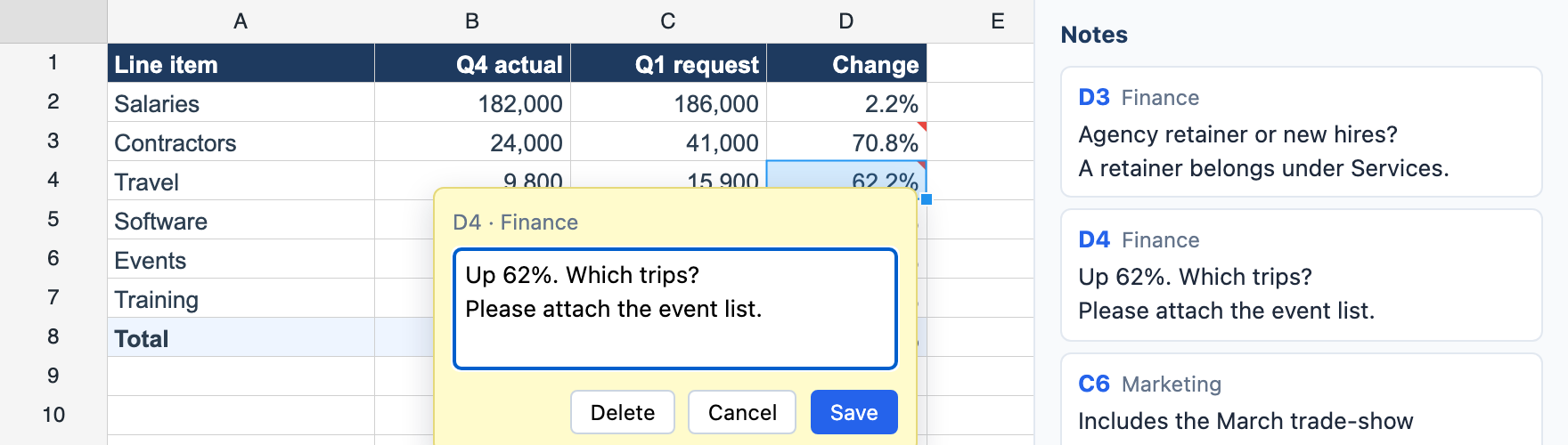
onCommentClick fires for a press on the red corner, a small square in the cell’s top-right. The event carries the cell (row, column), a copy of the note (comment), and the pointer position (clientX, clientY). The grid also selects the cell as usual, so the selection and the editor agree on where you are. For a merged cell, the event reports the top-left cell, where the note lives. If the cell has a cell type, the press on the corner doesn’t also tick its checkbox or open its list.
The instance-level grid.onCommentClick follows whichever sheet is active, so in a multi-sheet workbook one subscription covers every sheet. (ws.onCommentClick also exists, scoped to one worksheet.)
onContextMenu is the way to a cell that has no note yet. By the time it fires, the grid has already selected the cell and suppressed the browser’s own menu. e.area tells you what was right-clicked: 'cell', 'row-header', 'column-header' or 'corner'. Only the first has a row and column, and checking it narrows the event’s type in TypeScript. This example opens the editor straight away to keep the code short. In a real app, “New note” would be one item in your own context menu.
Notes follow their cells
A note is attached to a cell, not to a position on the screen, and the grid keeps it there as the sheet changes:
| The user… | …and the note |
|---|---|
| Inserts or deletes rows or columns above / to the left | Moves with its cell |
| Deletes the row or column the note is on | Is deleted with it |
Sorts (sortColumn, or a filter dropdown) | Travels with its row |
| Drags a range to a new place | Travels with the range |
| Copies and pastes a cell | Stays behind. Paste carries value, format and style, not the note |
A note’s id stays the same through all of these, so within a session it’s a fine key for anything your app tracks about a note, like a “resolved” tick. It is not saved to xlsx or JSON, though. Every load assigns fresh ids, so don’t keep them in a database to match up later.
Saving: xlsx and JSON
xlsx. Since v1.6, saveAsXlsx() writes notes the way Excel writes them: a comments part with the text and author, plus the legacy drawing that gives each note its box. Excel needs both. Without the second, it opens the file only after a repair. When the file is opened in Excel, each note is a normal Excel note: red triangle, author, text. A note saved with visible: true opens pinned. There’s nothing to call; it’s part of the save.
Two things don’t make the round trip. The box geometry, the size and position of the sticky note, isn’t modelled: notes read from a file lose it, and saved notes get Excel’s default box next to their cell. Formatting inside a note, like a bold word, is read as plain text.
JSON. ReoGrid JSON keeps notes per sheet as plain data, which makes it the easy format for saving a review in progress to your own backend:
"comments": [
  { "row": 2, "col": 3, "text": "Agency retainer or new hires?\nA retainer belongs under Services.", "author": "Finance" },
  { "row": 3, "col": 3, "text": "Up 62%. Which trips?\nPlease attach the event list.", "author": "Finance" },
  { "row": 5, "col": 2, "text": "Includes the March trade-show\nbooth (12,000).", "author": "Marketing" }
]
After loadXlsx, loadFromUrl or loadJson, read grid.worksheet again rather than reusing the reference you had, then call renderList(). A load puts its own notes on the sheet, and the panel won’t know until you tell it.
Where Lite ends and Pro begins
| Feature | Lite (free) | Pro |
|---|---|---|
| Notes read from xlsx or JSON, with their red markers | ✅ | ✅ |
Reading notes (getComment, getComments, hasComment) | ✅ | ✅ |
onCommentClick, showCommentBubble, onContextMenu | ✅ | ✅ |
Writing notes (setComment, removeComment, clearComments, setCommentVisible) | — | ✅ |
xlsx export with notes (saveAsXlsx) | — | ✅ |
Built-in functions (SUM in the Total row) | — | ✅ |
In Lite the write methods are stubs. They log a console warning and change nothing, which is why the worked example imports @reogrid/pro.
That still leaves a useful Lite tool: a read-only review viewer. Someone reviews the budget in Excel and sends the file back. Your app shows it with every note listed and readable, no Pro license needed:
import { createReogrid } from '@reogrid/lite';

const grid = createReogrid({ workspace: '#grid', showCommentBubble: false });
await grid.loadFromUrl('/reviews/q1-budget-reviewed.xlsx');
const ws = grid.worksheet;

// …the panel code above, unchanged, then:
renderList();
grid.onCommentClick(({ row, column, clientX, clientY }) =>
  openEditor(row, column, clientX, clientY));   // the editor minus Save and Delete
The panel code works as is. The editor becomes a viewer: drop the Save and Delete buttons, and make the textarea readOnly. Lite’s limit is 100 rows × 26 columns, which covers most review sheets, and the a1 helper’s A–Z columns.
Wrapping up
Notes are how spreadsheet people talk about a sheet without changing it. ReoGrid Web keeps Excel’s model of them: one note per cell, a name, plain text, a red triangle. setComment writes them, getComments lists them, and they stay attached to their cells through inserts, deletes, sorts and moves, and through a save to xlsx or JSON. Since v1.7.1, showCommentBubble: false and onCommentClick let you replace the built-in bubble with your own editor, which is where a review tool starts: the reviewer’s name on every note, an empty save that deletes, and a panel that never lets an open question hide in a cell.
Try notes in the cell comments demo, and see the cell comments docs for the full API. For the hover hints that aren’t saved with the sheet, see cell tooltips. And for the sheet before review, the one people fill in, see the form mode article.