
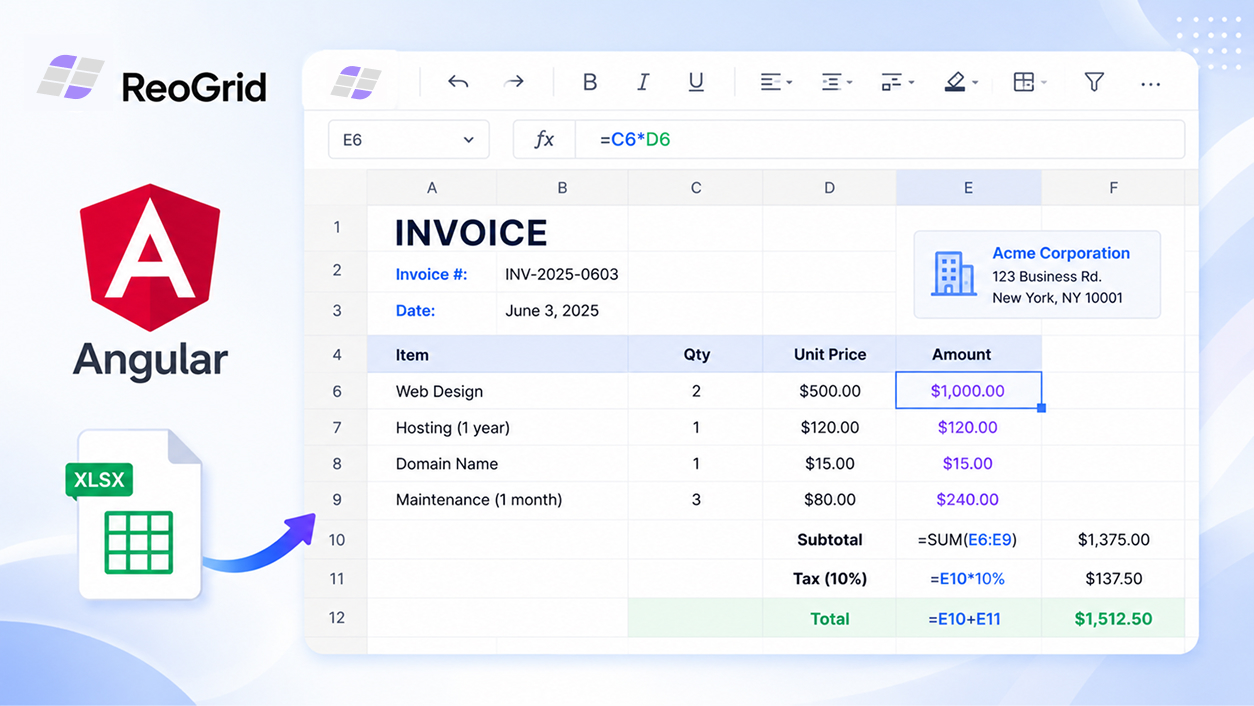
ReoGrid Web ships first-party wrappers for React and Vue, but there is no Angular wrapper — and you don’t need one. The grid’s core is a framework-agnostic factory that mounts onto any DOM element. In Angular you call it directly from a component, which is arguably cleaner than a wrapper would be: you own the lifecycle, and there’s no extra abstraction between you and the API.
This post shows the whole integration — mount, populate, edit, sync back to Angular, and load an Excel file — in one standalone component.
Install
npm install @reogrid/lite@reogrid/lite is the free tier (100 rows × 26 columns, arithmetic formulas). Swap it for @reogrid/pro when you need built-in functions like SUM, sort/filter, freeze panes, or xlsx export. The API is identical, so nothing below changes.
A minimal standalone component
The core entry point is createReogrid(target), where target is a CSS selector or an HTMLElement. In Angular, grab the element with @ViewChild and mount in ngAfterViewInit. Tear down in ngOnDestroy — the instance exposes destroy().
import {
  Component,
  ElementRef,
  ViewChild,
  AfterViewInit,
  OnDestroy,
} from '@angular/core';
import { createReogrid, type ReogridInstance } from '@reogrid/lite';

@Component({
  selector: 'app-grid',
  standalone: true,
  template: `<div #host style="width: 100%; height: 480px;"></div>`,
})
export class GridComponent implements AfterViewInit, OnDestroy {
  @ViewChild('host', { static: true }) host!: ElementRef<HTMLDivElement>;
  private grid?: ReogridInstance;

  ngAfterViewInit() {
    this.grid = createReogrid(this.host.nativeElement);
    const { worksheet } = this.grid;

    worksheet.cell('A1').setValue('Product').setStyle({ bold: true, backgroundColor: '#eff6ff' });
    worksheet.cell('B1').setValue('Price').setStyle({ bold: true, backgroundColor: '#eff6ff' });
    worksheet.cell('A2').setValue('Widget');
    worksheet.cell('B2').setValue('9.99');
    worksheet.column(0).width = 160;
  }

  ngOnDestroy() {
    this.grid?.destroy();
  }
}
That’s a working, editable Excel-like grid. Double-click a cell to edit it, just like in a real spreadsheet.
Why
static: true? The host<div>is always present in the template (not behind an*ngIf), so it’s available inngAfterViewInit. If you put the grid behind a structural directive, use{ static: false }and mount once the element exists.
An editable invoice with live totals
Spreadsheets earn their keep when cells reference each other. Formulas are plain =-prefixed inputs — setValue('=B2*C2') and setCellInput(row, col, '=B2*C2') both create live formulas; setCellInput is simply the 0-based coordinate form, which is convenient inside loops.
ngAfterViewInit() {
  this.grid = createReogrid(this.host.nativeElement);
  const { worksheet } = this.grid;

  ['Item', 'Qty', 'Unit Price', 'Subtotal'].forEach((h, c) =>
    worksheet.cell(0, c).setValue(h).setStyle({ bold: true, backgroundColor: '#eff6ff' }),
  );

  const items = [
    { item: 'Design review',   qty: 4, price: 150 },
    { item: 'Prototype build', qty: 8, price: 120 },
    { item: 'User testing',    qty: 3, price: 140 },
  ];

  items.forEach((it, i) => {
    const row = i + 1;
    worksheet.cell(row, 0).setValue(it.item);
    worksheet.cell(row, 1).setValue(String(it.qty));
    worksheet.cell(row, 2).setValue(String(it.price));
    worksheet.setCellInput(row, 3, `=B${row + 1}*C${row + 1}`);
  });

  const totalRow = items.length + 1;
  worksheet.cell(totalRow, 2).setValue('Total').setStyle({ bold: true });
  worksheet.setCellInput(totalRow, 3, `=SUM(D2:D${items.length + 1})`);

  worksheet.range(`C2:D${totalRow + 1}`).setFormat('$#,##0.00');
}
Edit any quantity or price and the subtotal and grand total recalculate instantly. (SUM is a Pro function; in Lite, write the total as =D2+D3+D4.)
Syncing grid edits back into Angular
ReoGrid is an imperative canvas — it doesn’t participate in Angular’s change detection. The right pattern is a one-way subscription: the grid owns the cell data, and you mirror the bits you care about into a component field or a signal.
import { Component, ElementRef, ViewChild, AfterViewInit, OnDestroy, NgZone, signal } from '@angular/core';
import { createReogrid, type ReogridInstance } from '@reogrid/lite';

@Component({
  selector: 'app-grid',
  standalone: true,
  template: `
    <div style="padding: 8px; font-size: 18px;">Total: <strong>{{ total() }}</strong></div>
    <div #host style="width: 100%; height: 420px;"></div>
  `,
})
export class GridComponent implements AfterViewInit, OnDestroy {
  @ViewChild('host', { static: true }) host!: ElementRef<HTMLDivElement>;
  private grid?: ReogridInstance;
  readonly total = signal('$0.00');

  constructor(private zone: NgZone) {}

  ngAfterViewInit() {
    this.grid = createReogrid(this.host.nativeElement);
    const { worksheet } = this.grid;
    // ...populate as above (the total formula lands in row 4, column 3 = D5)...

    // ReoGrid exposes a dedicated subscription method (not a generic .on());
    // it returns an unsubscribe function you can call on teardown.
    worksheet.onCellValueChange(() => {
      // Read the *computed*, formatted result. cell().value returns the raw
      // input — for a formula cell that's the formula text ("=SUM(D2:D4)"),
      // not the total — so use getDisplayText() (or getCellNumericValue()).
      const grand = worksheet.getDisplayText(4, 3); // D5 = total row
      this.zone.run(() => this.total.set(grand ?? '$0.00'));
    });
  }

  ngOnDestroy() {
    this.grid?.destroy();
  }
}
Two things worth knowing:
- In zoneless or
OnPushsetups, grid event callbacks may not trigger Angular’s change detection — wrapping state updates inNgZone.run()(or using signals) is the safe pattern, so the view always refreshes. - To read a computed value, use
worksheet.getDisplayText(row, col)(formatted text) orworksheet.getCellNumericValue(row, col)(the number). Thecell(...).valuegetter returns the raw input, which for a formula cell is the formula text — not its result. - Don’t make the grid a controlled component that you re-write from Angular state on every change — you’ll fight the canvas renderer and create feedback loops. The grid is the source of truth for cell data; Angular holds derived/summary values.
Loading an Excel file
xlsx import works in both Lite and Pro. Wire up a file input and hand the File to loadFromFile:
async onFile(e: Event) {
  const file = (e.target as HTMLInputElement).files?.[0];
  if (file && this.grid) {
    await this.grid.loadFromFile(file);
  }
}<input type="file" accept=".xlsx" (change)="onFile($event)" />You can also loadFromUrl('/data/report.xlsx') or loadFromBuffer(arrayBuffer). Exporting back to xlsx (saveAsXlsx) is a Pro feature.
Lite vs Pro in Angular
Nothing about the Angular integration changes between tiers — same import shape, same component code. Lite caps at 100 × 26 and disables built-in functions and xlsx export. For real apps with SUM/VLOOKUP, sort & filter, freeze panes, conditional formatting, or xlsx export, switch the import to @reogrid/pro and pass your license key:
this.grid = createReogrid(this.host.nativeElement, { licenseKey: 'YOUR_LICENSE_KEY' });Wrapping up
A canvas spreadsheet and Angular’s lifecycle hooks are a natural fit: mount in ngAfterViewInit, destroy() in ngOnDestroy, and treat the grid as the owner of its data. No wrapper, no shadow DOM quirks, no virtual-DOM reconciliation fighting the canvas — just a fast, Excel-like grid in your Angular app.
Browse the live demos to see what the grid can do, or jump into the getting-started guide. If you just need to view Excel files, try the free online XLSX viewer.