
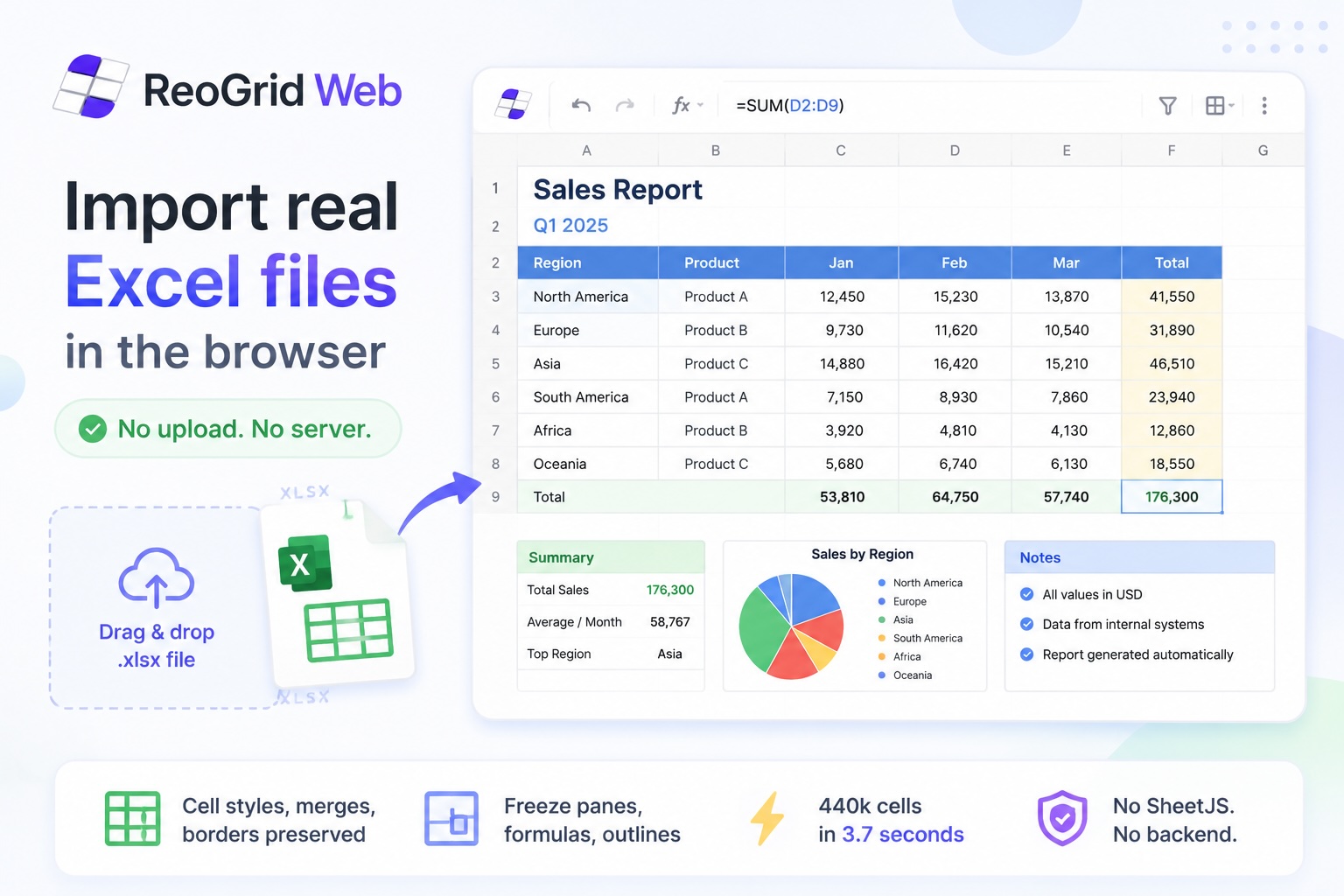
Search “xlsx viewer online” and you get a wall of sites that all work the same way: you upload your spreadsheet, their server parses it, and they render an image back to you. For a public sample file that is fine. For a payroll sheet, a customer export, or anything under an NDA, you have just handed your data to a third party — and there is usually a checkbox somewhere giving them the right to keep it.
You can build a viewer that does none of that. The whole pipeline — file pick, parse, render — runs in the browser. The bytes never touch a network. This post is a complete, read-only XLSX viewer in React that you can drop into any internal tool, customer portal, or docs site.
The complete viewer
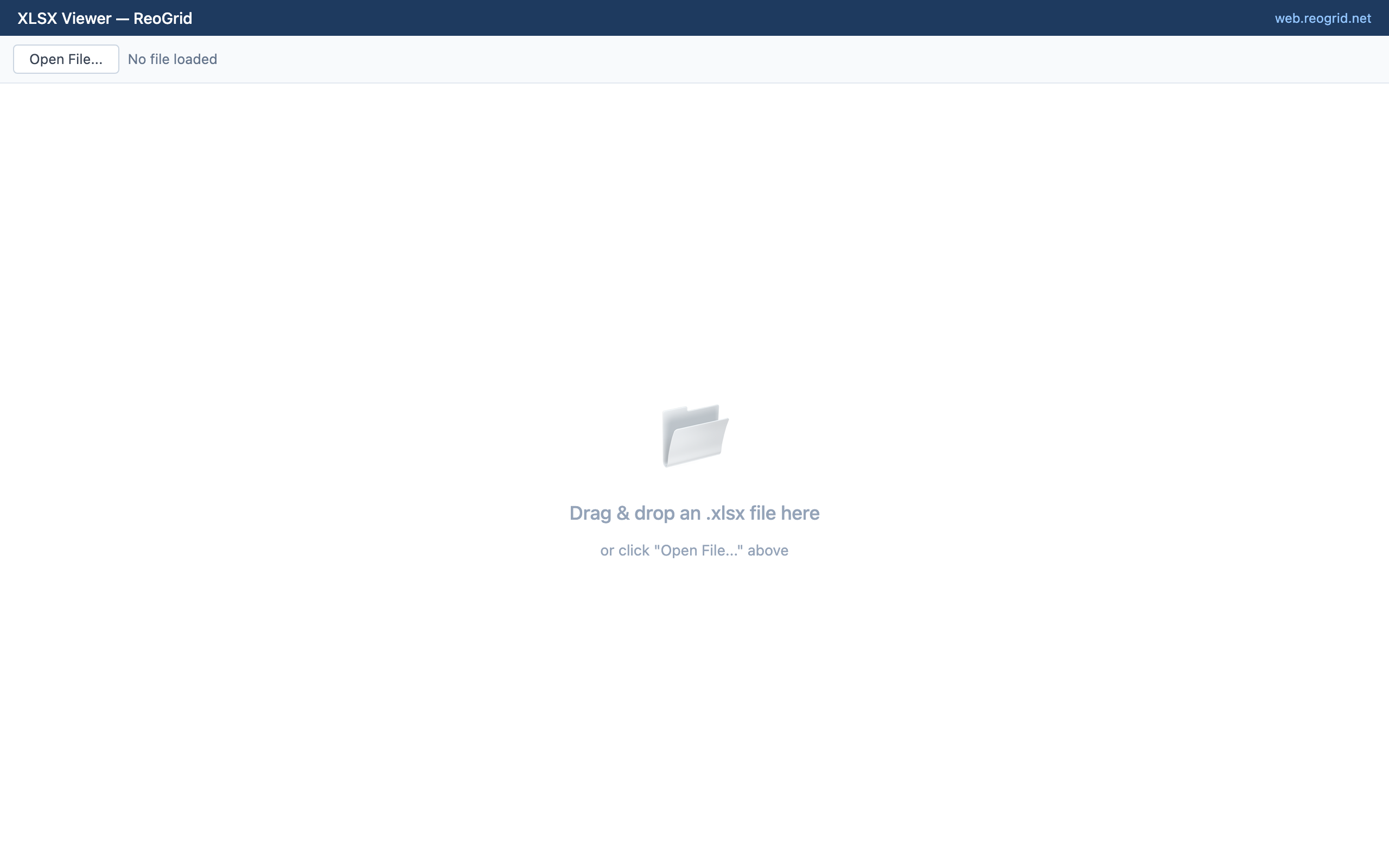
This is the whole thing — a drag-and-drop drop zone, a file picker, a file-info bar, and a read-only grid. xlsx import works in the free Lite edition, so this runs without a license.
import { Reogrid, type ReogridInstance } from '@reogrid/lite/react';
import { useRef, useState, type DragEvent } from 'react';

export default function XlsxViewer() {
  const gridRef = useRef<ReogridInstance>(null);
  const [file, setFile] = useState<{ name: string; size: number } | null>(null);
  const [dragging, setDragging] = useState(false);

  async function open(f: File) {
    if (!f.name.toLowerCase().endsWith('.xlsx')) return;
    const grid = gridRef.current!;
    await grid.loadFromFile(f, { chunked: true });  // parse + render every sheet, in-browser
    for (const ws of grid.workbook.getWorksheets()) {
      ws.protected = true;                          // view-only: lock every cell
    }
    setFile({ name: f.name, size: f.size });
  }

  function onDrop(e: DragEvent) {
    e.preventDefault();
    setDragging(false);
    const f = e.dataTransfer.files[0];
    if (f) open(f);
  }

  return (
    <div
      onDragEnter={(e) => { e.preventDefault(); setDragging(true); }}
      onDragLeave={(e) => { e.preventDefault(); setDragging(false); }}
      onDragOver={(e) => e.preventDefault()}
      onDrop={onDrop}
      style={{ position: 'relative', border: '1px solid #e2e8f0', borderRadius: 12, overflow: 'hidden' }}
    >
      <div style={{
        display: 'flex', alignItems: 'center', gap: 12,
        padding: '10px 14px', borderBottom: '1px solid #e2e8f0', background: '#f8fafc',
      }}>
        <label style={{ cursor: 'pointer', fontWeight: 600, color: '#1d4ed8' }}>
          Open .xlsx
          <input
            type="file"
            accept=".xlsx"
            hidden
            onChange={(e) => e.target.files?.[0] && open(e.target.files[0])}
          />
        </label>
        <span style={{ fontSize: 13, color: '#64748b' }}>
          {file
            ? `${file.name} · ${(file.size / 1024).toFixed(0)} KB · read-only`
            : 'No file — drag one in or click “Open .xlsx”'}
        </span>
      </div>

      <Reogrid ref={gridRef} style={{ width: '100%', height: 600 }} />

      {dragging && (
        <div style={{
          position: 'absolute', inset: 0, background: 'rgba(59,130,246,0.08)',
          border: '2px dashed #3b82f6',
          display: 'flex', alignItems: 'center', justifyContent: 'center',
          fontSize: 16, fontWeight: 600, color: '#1d4ed8', pointerEvents: 'none',
        }}>
          Drop to view
        </div>
      )}
    </div>
  );
}
loadFromFile takes the File object straight from the input or the drop event. It reads the bytes via the File API (file.arrayBuffer()), unzips the OOXML, materializes cells, styles, merges, borders, and formulas, and renders to canvas. There is no fetch, no upload, no SheetJS glue.
Why “read-only” is the whole point of a viewer
A viewer is not an editor. If the user can click a cell and start typing, you have to answer “saved where?” — and you don’t have a backend, by design. So lock it down:
worksheet.protected = true;That puts every cell in protected mode. The user can still select cells, scroll, and copy — all the things you want in a viewer — but typing into a cell does nothing. It’s the difference between a document viewer and a document editor, and it’s one line.
Set it after each load — on every sheet, as the viewer above does — because opening a fresh file replaces the worksheets. If you want to give feedback when someone tries to edit (a subtle “this file is read-only” toast, say), subscribe to the attempt:
worksheet.onProtectedCellEdit(({ row, column }) => {
  showToast('This file is read-only');
});
You can also keep most of the sheet locked but unlock a specific range — useful if your “viewer” has one editable comment column:
worksheet.protected = true;
worksheet.setRangeLock(1, 5, 99, 5, 'unlocked'); // column F stays editable
Viewing a file from a URL, not just a drop
Drag-and-drop is the headline interaction, but a lot of “view this spreadsheet” links point at a file already sitting on your origin — a report, a template, an attachment. Skip the file picker and load it directly:
// A file on your own origin (or any CORS-enabled URL)
await grid.loadFromUrl('/reports/2026-q2.xlsx', { chunked: true });
worksheet.protected = true;
If the bytes are already in memory — fetched from an API, pulled out of IndexedDB, decoded from a base64 blob — hand them over directly and skip the round trip to disk:
const buf = await fetch('/api/export/4821').then(r => r.arrayBuffer());
await grid.loadXlsx(buf);
worksheet.protected = true;
That makes a shareable viewer?src=/reports/2026-q2.xlsx route a few lines of code: read the query param, call loadFromUrl, done. The file still renders on the client; the URL is just where the bytes came from.
What renders correctly
Real-world .xlsx files are messy — theme colors, shared strings, rich-text runs, conditional number-format sections. The importer handles the realistic surface: cell values and formulas, fonts and fills, per-side borders, merged cells, currency/date/custom number formats, frozen panes, row/column grouping, conditional formatting, and images. In the Lite edition this viewer uses, values, styles, merges, borders, and number formats render — frozen panes, grouping, conditional formats, images, and function formulas (e.g. =SUM(...)) require Pro. Pivot tables and charts are the known gaps (pivots read as flat values; charts are skipped).
The full fidelity table and the big-file performance story — a 440,000-cell file rendering its first frame in ~40 ms with chunked loading — are covered in the companion post, Importing real Excel files in the browser. That { chunked: true } flag in the viewer above is what keeps the tab from freezing on large files; the deep-dive explains the trade-off.
Add “Print / Save as PDF”
The browser’s print dialog is the simplest way to let users get a paper or PDF copy of what they’re viewing. The Pro edition renders the sheet to a clean HTML table and opens the dialog:
import { printWorksheet } from '@reogrid/pro';

<button onClick={() => printWorksheet(gridRef.current!.worksheet, {
  title: file?.name,
  orientation: 'landscape',
})}>
  Print / Save as PDF
</button>
From the dialog the user picks a real printer or “Save as PDF.” No server-side rendering, no headless Chrome — it’s the page they’re already looking at.
Lite vs Pro for a viewer
xlsx import and read-only mode both work in the free Lite edition, so the core viewer above costs nothing. The one thing to know: Lite truncates anything past 100 rows × 26 columns. That’s fine for a known, bounded file. But a generic viewer accepts arbitrary user files — and the moment someone drops a 5,000-row export, Lite silently cuts it off.
If you’re building a viewer for files you don’t control, the Pro edition removes the size cap and adds printWorksheet, the 109-function formula library, and xlsx export. The viewer code is identical — swap @reogrid/lite/react for @reogrid/pro/react and pass your licenseKey via the options prop.
| Lite (free) | Pro | |
|---|---|---|
| xlsx import + render | ✅ | ✅ |
| Read-only / protected mode | ✅ | ✅ |
| Grid size | 100 × 26 | unlimited |
| Print / Save as PDF | — | ✅ |
| xlsx export | — | ✅ |
Why client-side is the right default
A server-side viewer means multi-megabyte uploads, parsing CPU on your machines, temp-file lifecycle, and a privacy story you have to write and defend. For showing a user their own file, none of that is doing work anyone asked for.
Client-side, the file never leaves the device, the load is bounded only by the user’s CPU, and there’s nothing to retain, log, or breach. “Open .xlsx” stays a local operation — which is exactly what people assume a viewer does, and almost never what the “online xlsx viewer” sites actually do.
Try it: drop your own .xlsx into the live XLSX viewer demo — watch the network tab stay empty. Building an editable tool next? See Building a React invoice with editable formulas for the other half of the story.